SDF APP Management
In the SDF APP management screen, SDF APP instances operating in an internal (On-Prem) environment are registered and managed on a slot basis.
The SDF APP is registered based on IP·MAC addresses and can be registered within the range of the number of SDF APPs allocated to the license (quota).
1. List Screen
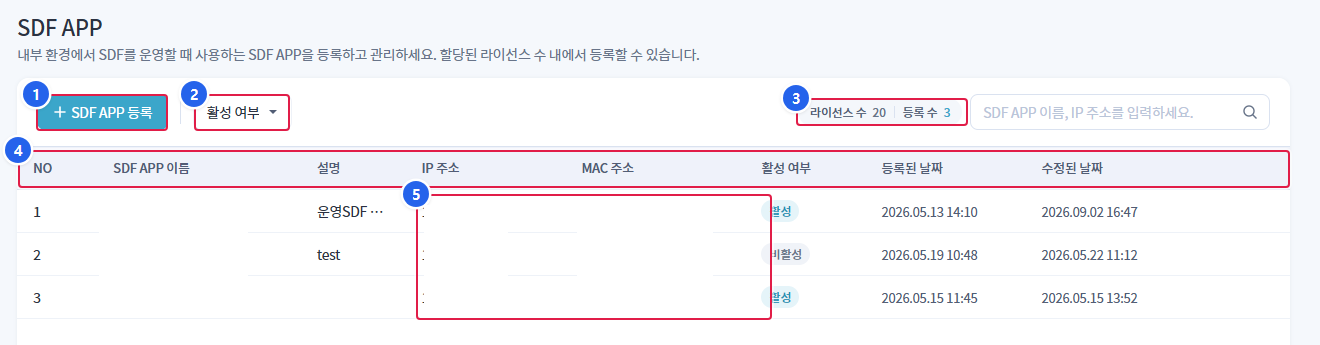
1. SDF APP Registration
- Open the new SDF APP registration panel.
2. Active Status Filter
- Filter the list by All / Active / Inactive.
3. License Count / Registration Count
- Displays the current registration status against the quota.
4. List
- The registered SDF APP is displayed in a table. Clicking on a row opens the detailed panel on the right.
5. IP Address / MAC Address
- This is the value that identifies the server where the SDF APP is installed. If you move or replace the server, you need to modify or re-register this value.
1.1 List Table Structure
| Column | Explanation |
|---|---|
| NO | Number |
| SDF APP Name | Name of the SDF APP |
| Explanation | Description of the SDF APP |
| IP address | Registered IP Address |
| MAC address | Registered MAC Address |
| Active status | Active / Inactive (indicated by chip) |
| Registered Date | Initial registration date and time |
| Modified Date | Last modified date and time |
1.2 List Screen Features
| Function | Explanation |
|---|---|
| SDF APP Registration | Open New SDF APP Registration Panel |
| Active Status Filter | All / Active / Inactive Filters |
| Search | Search by SDF APP name or IP address |
| License Count / Registration Count | Display registration status against the quota with the right badge |
| Detailed View | Open the right detail panel when clicking a row |
2. SDF APP Registration
SDF APP 등록When you click the button, the registration panel will open on the right.
| Input Item | Explanation | Pharmaceuticals |
|---|---|---|
| SDF APP Name | Name of the SDF APP | Required, no duplicates allowed |
| Explanation | Additional explanation | Selection, up to 200 characters |
| IP address | IP of the server where the SDF APP is installed | Required, IPv4 format, no duplicates allowed |
| MAC address | MAC of the server where the SDF APP is installed | Required, MAC format (colon/hyphen separated) |
| Active status | Active/Inactive Toggle | Default Active |
The IP·MAC address format is validated upon entry.
| situation | Guide Message |
|---|---|
| IP Duplication | This IP address is already registered. |
| IP format error | It is not a valid format for an IP address. |
| MAC format error | It is not a valid format for a MAC address. |
| Name duplication | An SDF APP with the same name already exists. |
| Exceeded limit | SDF APP license limit has been exceeded. |
3. Detail View and Edit
Clicking on the SDF APP in the list will open the detailed panel on the right.
| item | display |
|---|---|
| SDF APP Name | name |
| Explanation | Explanation |
| IP address | Registered IP |
| MAC address | Registered MAC |
| Active status | Active / Inactive |
| Registration Date / Modification Date | Date and Time |
Disabling the SDF APP will block new API call authentication for that SDF APP.
4. SDF APP Delete
detailed panel or list row in삭제Select __PH_0__. Confirm deletion in the confirmation window.
If you delete the SDF APP, new API call authentication for that SDF APP will be blocked. The deleted SDF APP cannot be restored.
5. Notes
- SDF APP is registered based on IP·MAC, so if the server is moved or replaced, you need to modify or re-register the information.
- SDF APP is used to operate SDF in internal environments such as closed networks and standalone systems.